> For the complete documentation index, see [llms.txt](https://docs.defined.fi/llms.txt). Markdown versions of documentation pages are available by appending `.md` to page URLs; this page is available as [Markdown](https://docs.defined.fi/defined-docs/defined-classic/defined-features/watchlists.md).
# Watchlists
Create or Import shareable custom token watchlists
## Creating Watchlists & Adding Tokens
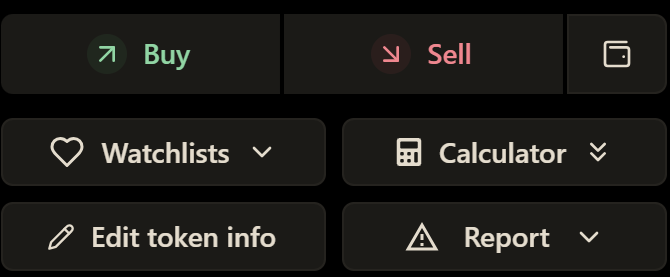
To add a token to a watchlist, select the "Watchlists" button on the token info panel
You can also add/edit directly on the Watchlists page
By default, you will have a "Favorites" watchlist you can add to, but you can also create a new watchlist and/or edit already existing ones.
We will go over "Importing" from DEXScreener on the next page.
Selecting the "+" button on a watchlist will add the current token to that specific watchlist.
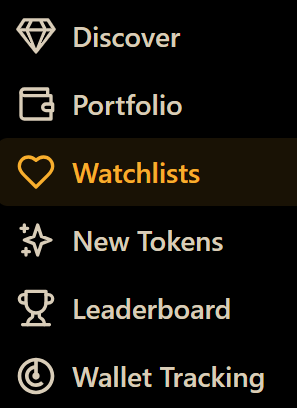
Now you can quickly view and cycle through your watchlists on the sidebar by selecting the down-arrow next to the Watchlist menu button.
## Sharing Watchlists
Your watchlists are private by default, but you can also make them public to share with friends and followers.
To share a watchlist, navigate to the Watchlist page from the side menu
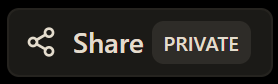
Next, click the "Share" button on the top right.
Check the box so "Anyone with this link can view your watchlist", and copy the URL to your clipboard.
You can now share this watchlist with friends and followers, so long as it remains "Public". If you make the watchlist private again by unchecking the box, the URL will no longer be viewable by those you have shared it with.
## Import Watchlists
Ready to ditch DEX Screener? Check out our [guide](/defined-docs/defined-classic/defined-features/watchlists/importing-watchlists.md) on how to import your custom watchlists 👇

 next to the Watchlist menu button.