> For the complete documentation index, see [llms.txt](https://docs.defined.fi/llms.txt). Markdown versions of documentation pages are available by appending `.md` to page URLs; this page is available as [Markdown](https://docs.defined.fi/defined-docs/defined-classic/defined-features/transaction-filtering.md).
# Transaction Filtering
Find transaction data relevant to your needs
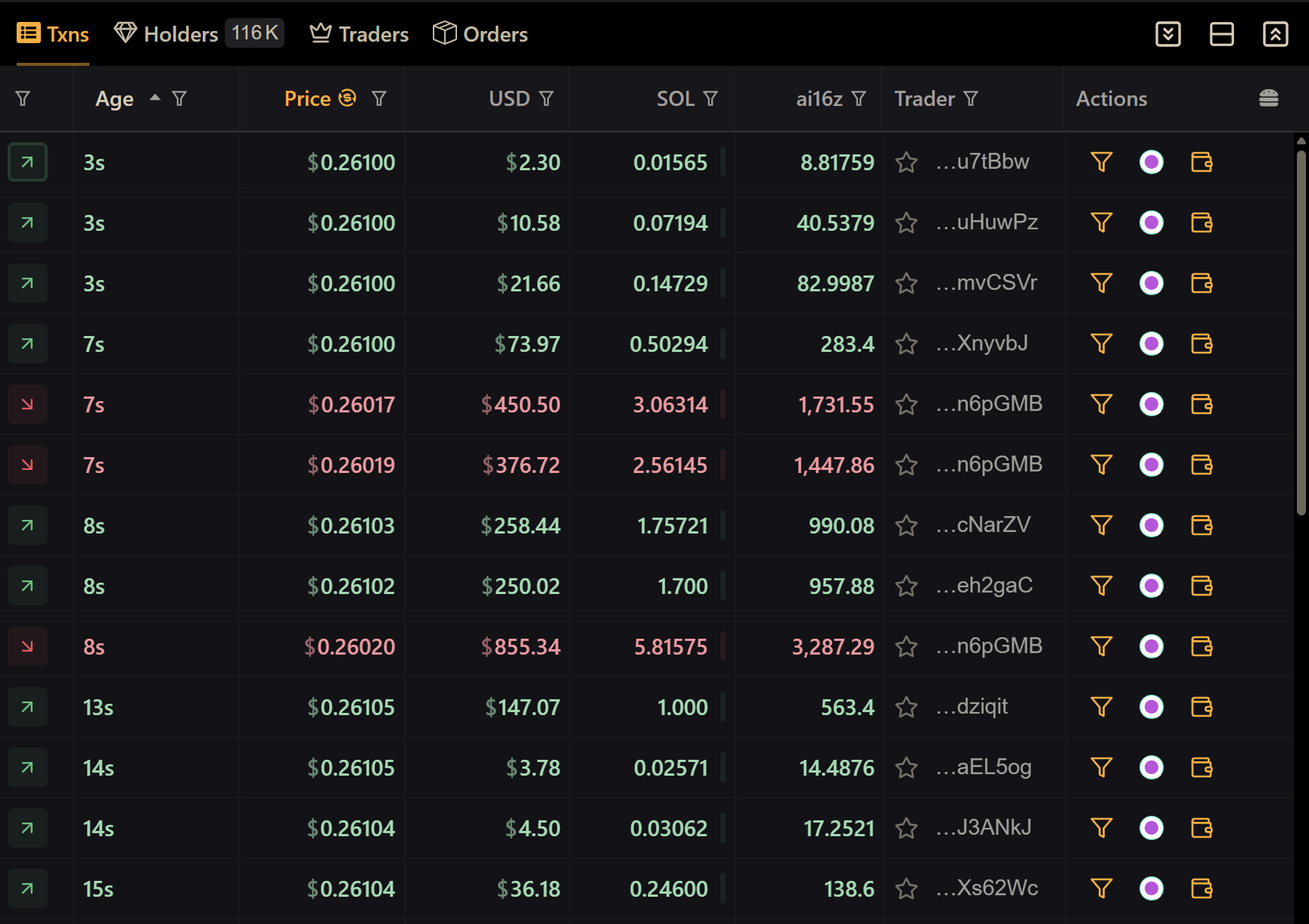
Defined charts and transaction tables give users the ability to filter historic and current transaction data so they only see what's important to them. It's as easy as using the filters on the transaction table, or simply clicking a candle on a token chart!
Transaction Table
## Available Filters
We currently allow users to filter transactions by the following:
* Age (enter date range or click a chart candle)
* Token Price
* USD Value
* Base Token Amount (eg: Eth, Sol)
* Token Quantity
* Wallet (Trader) Address
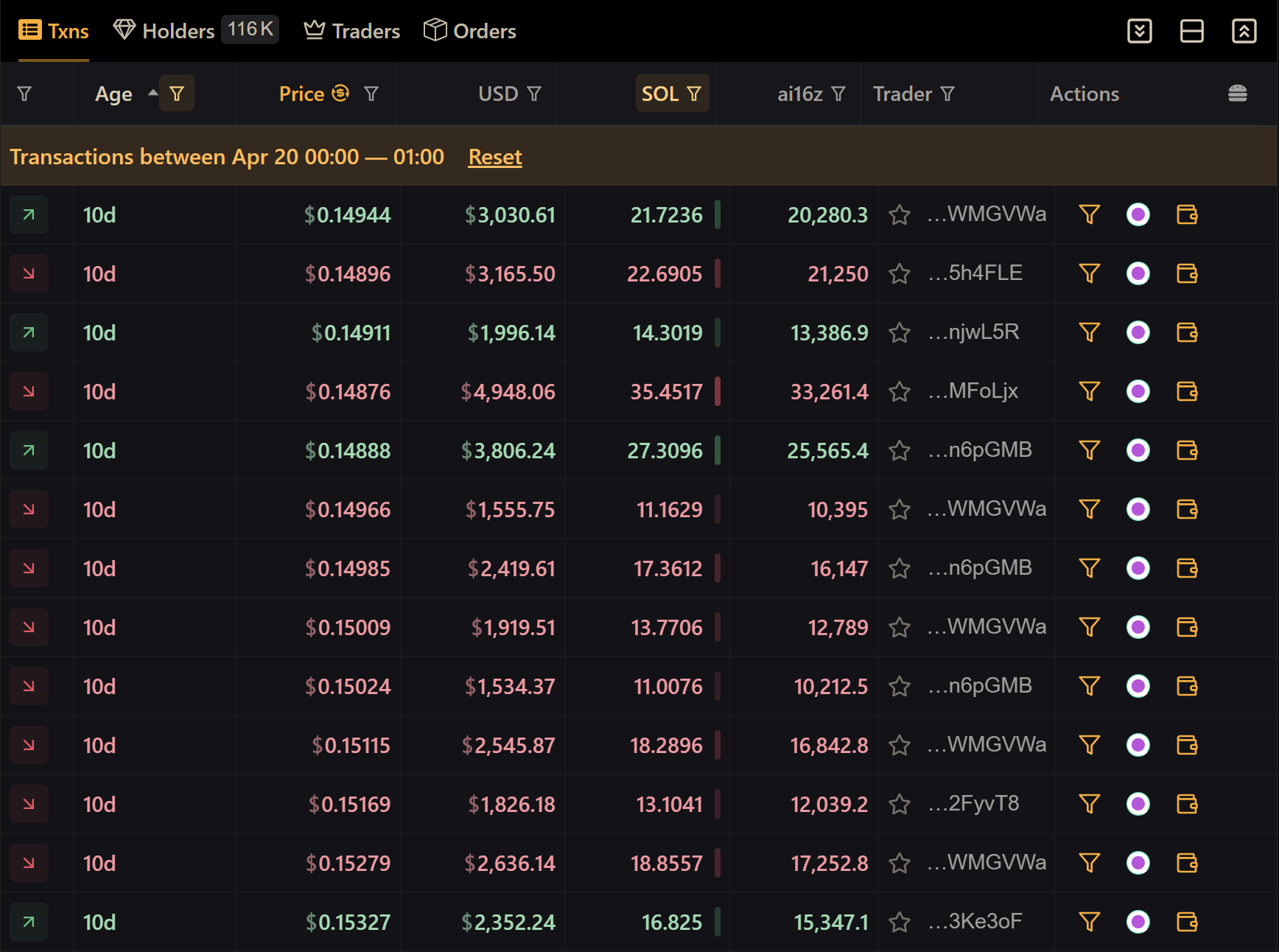
Here's an example that shows all transactions for a token on April 20th, 2025 between Midnight and 1am, with SOL amounts between 10 and 50 SOL. You'll notice the two active filters highlighted along the top row:
Age and SOL filters active
## Filter Using Chart Candles
Users can also filter for transactions that happen within a specific candle on a chart.
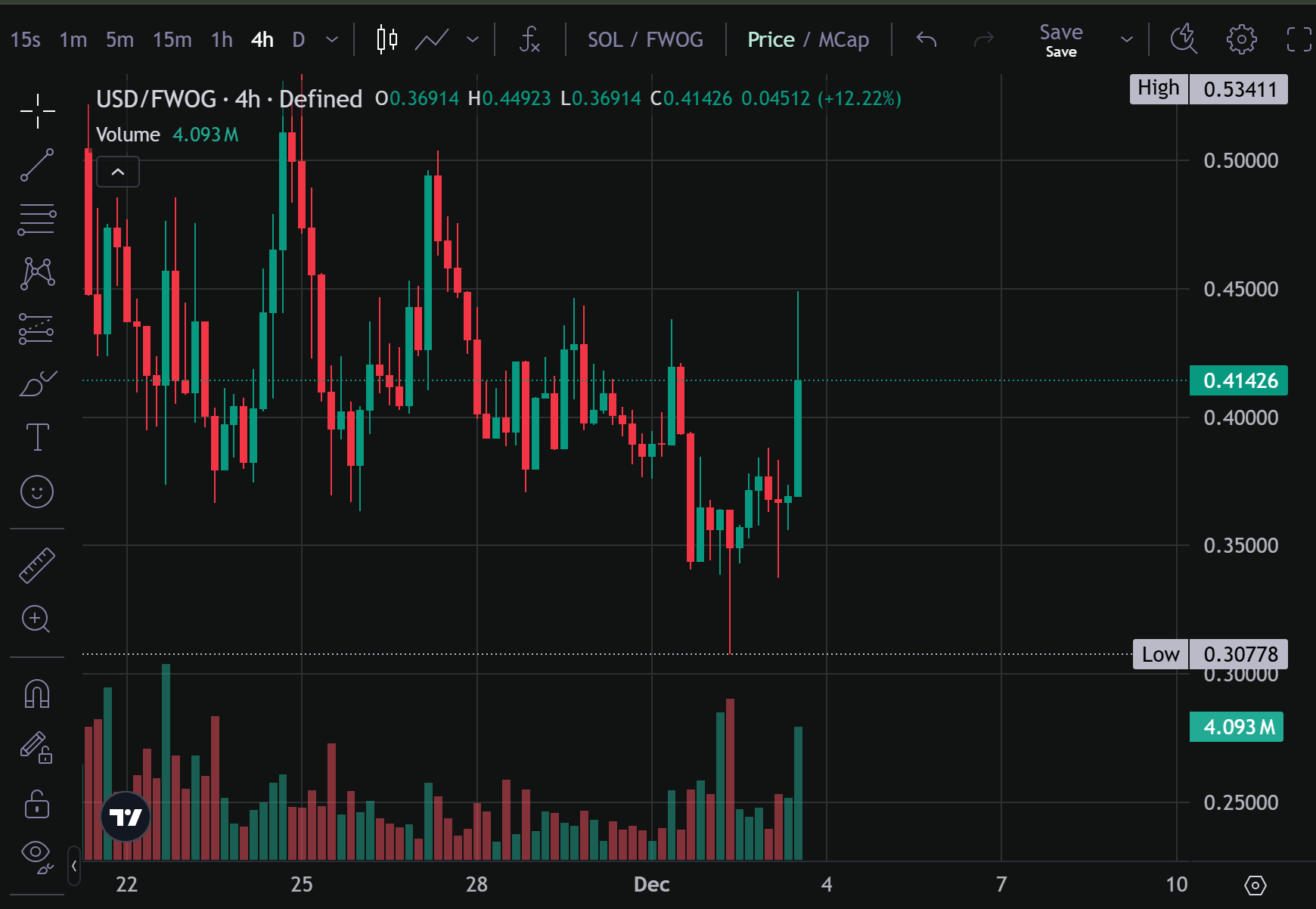
For example, let's say you want to see all the transactions that happened during the dip in this chart:
If we click on the lowest red candle on the chart, it will filter the transaction table to only show transactions within this candle (ie: date range). Note that this is a 4hr candle, so if you'd like to narrow results further, you can switch the timeframe on the chart to smaller increments like 1m, 5m, 15m, etc.
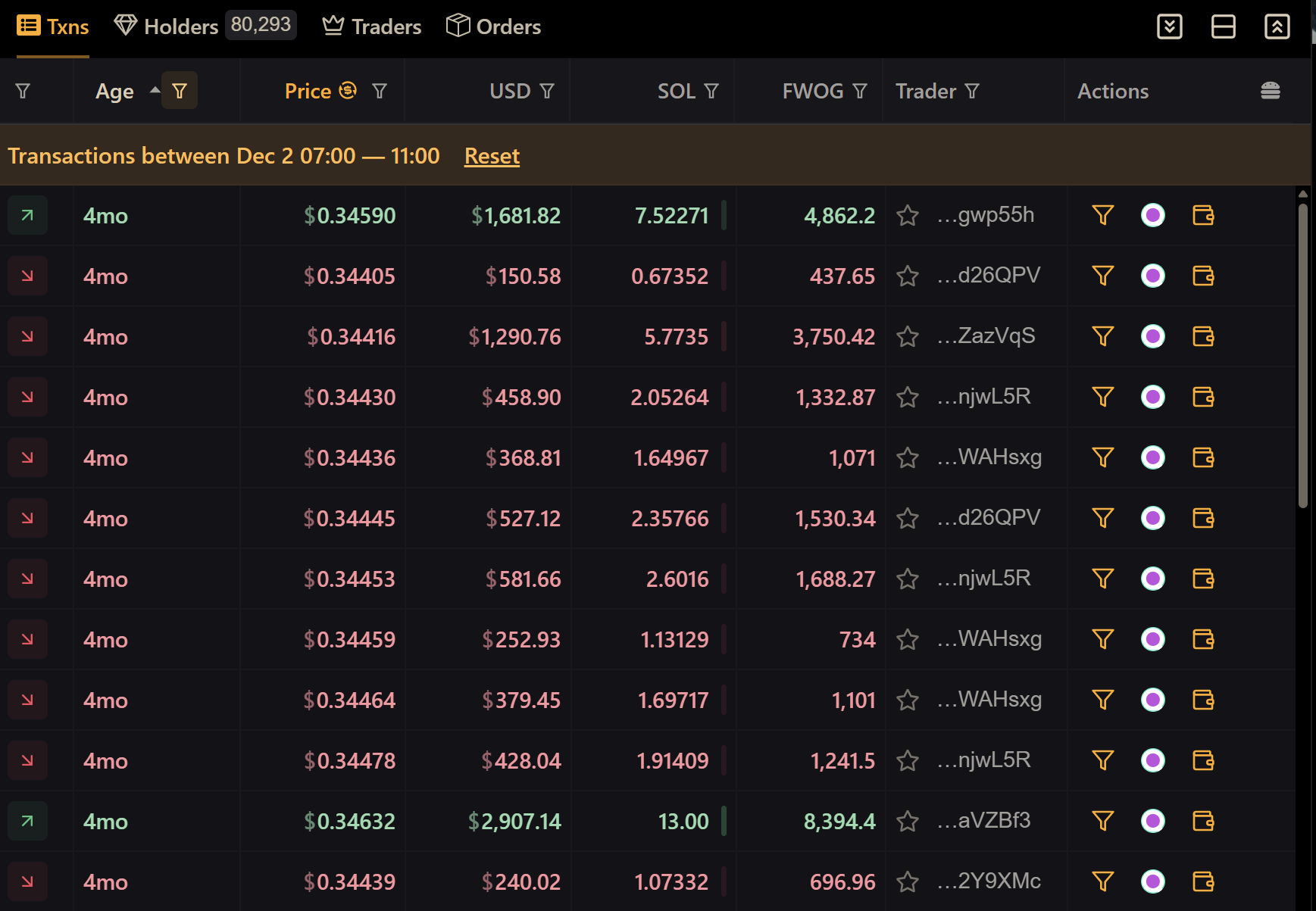
Here's an example where we clicked on the candle, automatically filtering for that 4 hour range:
filtered transactions from clicking on a chart candle
Using this information, you can pinpoint smart traders that bought "the dip" and made a profit. Once you find these traders, you can instantly track their wallets by clicking the "track wallet" button next to their transaction in the far right column. In the next section, we'll talk more in depth about Wallet Tracking.
 next to their transaction in the far right column. In the next section, we'll talk more in depth about Wallet Tracking.